
What Is Amazon PPC? How Pay-Per-Click Ads Work on Amazon
Amazon PPC is Amazon’s pay-per-click advertising. You bid to show your product in Amazon’s shopping results and on other products’ pages, the space is sold in an auction, and you pay when a shopper clicks your ad. The ads come in three types (Sponsored Products, Sponsored Brands and display ads). You pick what to target (keywords, products, or let Amazon choose), set a bid and a daily budget, and judge each campaign by what the ads sold against what they cost, usually as ACoS. After setup, it’s a weekly routine of reading reports and making small changes.
Each section below is the short version of one part, with a link to the article that goes deep on it.
How the Amazon PPC auction works
Sponsored Products ads are sold in a cost-per-click auction. Your bid is the most you’re willing to pay for one click, and Amazon’s FAQ says the more competitive the bid, the more likely the ad is to show. The bid isn’t all Amazon weighs, though. Amazon’s pricing transparency guide says it mainly considers the keywords advertisers bid on, how much they bid, and how interested shoppers are likely to be in each offer. So relevance counts alongside the money, and the biggest bid doesn’t automatically win.
Before any of that, the product has to qualify. If it’s out of stock or isn’t the Featured Offer, the ad doesn’t show.
You never pay more than your bid after adjustments. Amazon’s Sponsored Products best practices calls that adjusted bid the most you’ll pay for a click, and the cost per click never goes above it. Your average cost per click (CPC) is spend divided by clicks, so $100 of spend over 100 clicks is a $1.00 CPC.
Bidding far under what others pay mostly buys silence, because the ad rarely wins. The ceiling comes from what a click is worth to you, which the CPC calculator works out from your target ACoS. Our guide to Amazon advertising bidding covers the auction and what you actually pay.
The three Amazon ad types
Sponsored Products
Sponsored Products are cost-per-click ads for individual product listings. They show at the top of, alongside or within shopping results and on product detail pages (Amazon’s Sponsored Products page). Professional sellers, vendors and KDP authors can run them, as long as the product is in an eligible category and eligible for the Featured Offer.
It’s where Amazon suggests new advertisers start, with a first Sponsored Products campaign using automatic targeting (Amazon’s getting started guide). Our Sponsored Products guide covers the ad type in depth. Authors launch theirs from KDP, which our KDP ads guide walks through.
Sponsored Brands
Sponsored Brands ads feature your brand logo, a custom headline and several of your products, and they show in shopping results (Amazon’s guide to its ad products). They can also run as video, and they send shoppers to a product page or your Brand Store. Sellers have to be enrolled in Amazon Brand Registry, and vendors, KDP authors and agencies can run them too (Amazon’s Sponsored Brands page). You pay per click or per thousand viewable impressions (vCPM).
Sponsored Display, now display ads
Amazon has folded Sponsored Display into what it now calls display ads. They reach shoppers across the Amazon store and on thousands of third-party apps and websites. The self-service version is bought per click or per thousand viewable impressions, with no minimum spend.
Campaigns, ad groups and targeting
A campaign holds one or more ad groups, and each ad group holds the products you advertise and the targets you bid on. The daily budget sits on the campaign. Targeting and bids apply to every product in the ad group, so one product per ad group keeps the numbers readable. Our campaign structure guide lays out three campaigns per product and what moves between them.
Each Sponsored Products campaign uses automatic or manual targeting, and that’s the one setting you can’t undo. Once the campaign is live, changing your mind means building a new one (Amazon’s targeting guide).
Automatic targeting
In an automatic campaign, Amazon matches your ad to searches and product pages it judges relevant to your product. It does that through four targeting groups (close match, loose match, substitutes and complements), and you can set a bid on each. Amazon suggests starting with an automatic campaign and letting it run about two weeks before you build manual campaigns from its search terms. Run that way, an auto campaign is mostly a research tool, and our auto campaigns guide covers the loop.
Manual targeting
In a manual campaign you choose the targets. Keywords come with a match type.
- Broad matches searches related to your keyword, with the words in any order, and can include plurals, variations and synonyms.
- Phrase matches searches with your keyword’s words in the same order, with other words allowed before or after.
- Exact matches the search word for word, in the same order, plus close variants.
Amazon suggests your highest bid on exact, a lower one on phrase and the lowest on broad. Product targeting is the other kind of manual target. It puts your ad on specific products’ detail pages, or on whole categories you can narrow by brand, price range and ratings.
Negative targeting
Negatives keep your ad away from traffic you don’t want. A negative keyword (phrase or exact) blocks searches that don’t fit, and a negative product target keeps the ad off a product’s page. Both work in automatic and manual campaigns. Most negatives come out of the search term report, and our negative keywords guide has the math for when a term has had a fair chance.
Bids, bidding strategies and placements
You set a bid on each keyword or target. Treat Amazon’s suggested bid as a read on the market. It doesn’t know your margin, so work your starting bid out from three numbers you do know.
Target CPC = conversion rate × price × target ACoS
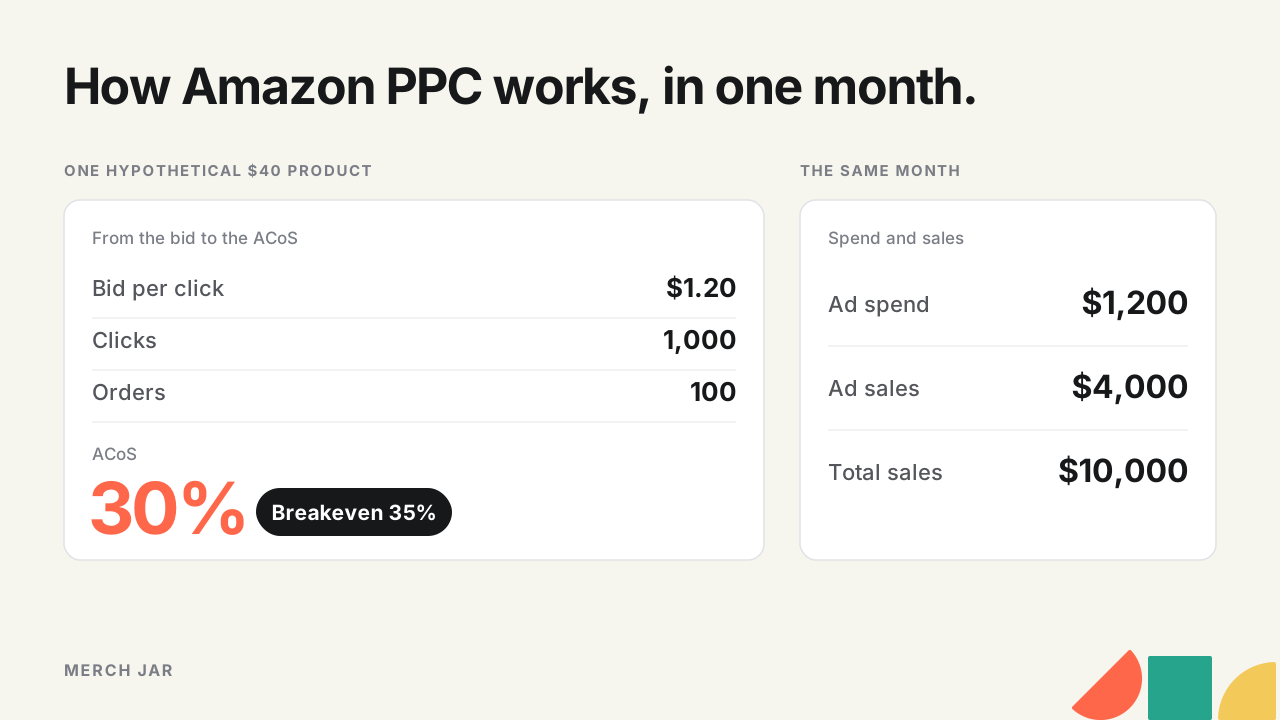
A hypothetical product sells for $40 and gets one order for every 10 clicks. At a 30% target ACoS, 10% × $40 × 30% = $1.20 a click. Our keyword bidding guide works through it, including when to move a bid once data comes in.
Two campaign settings then move that bid. The bidding strategy decides whether Amazon can change it in real time. Dynamic bids down only lowers your bid when a click looks less likely to convert. Dynamic bids up and down also raises it, by up to 100% at the top of search and up to 50% on other placements (Amazon’s FBA advertising guide). Fixed bids uses your exact bid.
Placement adjustments raise your bid by a percentage, from 0% to 900%, when the ad is eligible for top of search, rest of search or product pages (Amazon’s help page on adjusting bids). The adjustment applies first and the strategy works on top of it. Amazon’s own example is a $1.00 bid with a 50% top of search adjustment, which bids $1.50 there, and up and down can take that as high as $3.00. The bidding guide has the full table.
The reports and metrics that matter
Amazon’s best practices guide lists five Sponsored Products reports.
- The search term report shows what shoppers searched before clicking your ad. It only includes terms with at least one click and goes back 65 days (Amazon’s search term report page).
- The targeting report shows how your keywords and product targets performed.
- The advertised product report shows each product you advertise.
- The placement report compares top of search with your other placements.
- Performance over time tracks clicks, spend and average CPC.
Most decisions come from a few ratios. Take one hypothetical month for the $40 product, with 100 orders of one unit each.
| Metric | Formula | Example month |
|---|---|---|
| CPC | Spend ÷ clicks | $1,200 ÷ 1,000 = $1.20 |
| Conversion rate | Orders ÷ clicks | 100 ÷ 1,000 = 10% |
| ACoS | Spend ÷ ad sales | $1,200 ÷ $4,000 = 30% |
| ROAS | Ad sales ÷ spend | $4,000 ÷ $1,200 = 3.33 |
| TACoS | Spend ÷ total sales | $1,200 ÷ $10,000 = 12% |
ACoS (advertising cost of sales) is ad spend divided by the sales Amazon credits to your ads, and ROAS is the same two numbers flipped. Neither tells you whether the ads made money until you compare it with your breakeven. Amazon’s ACOS guide states the rule, that to stay profitable your ACoS has to sit below your profit margin. Say the $40 product leaves $14 a unit before ads. Its breakeven ACoS is $14 ÷ $40 = 35%, so the 30% month made money, about $2 a unit, or $200 across the 100 orders.
TACoS puts the same spend against all of the product’s sales, organic ones included, so it shows how much the business leans on ads. Total sales come from Seller Central, because the ads reports only count sales credited to ads. Conversion rate is the one that explains a lot of ACoS moves. When ACoS climbs and CPC hasn’t changed, look there before you touch a bid.
Sales also take time to land. For sellers, Sponsored Products credits a purchase to the last ad click within 7 days, and vendors and authors get 14 days. Conversions can take up to 12 hours to show up, and a report date stays incomplete until its window closes (Amazon’s attribution page). Leave the latest week out before you judge a bid.
Every formula with a worked example is in our advertising metrics guide. For one metric at a time, see what ACoS means, what a good ACoS is, a good ROAS, TACoS and conversion rate. Our dashboard guide shows where to find each number in the console.
Budgets
Each campaign gets a daily budget. Amazon averages it over the calendar month, so a campaign can spend more than the daily figure on a given day, up to 100% more depending on your settings (Amazon’s daily budgeting policy). The minimum for Sponsored Products is $1.00 a day, and Amazon recommends starting at $10 a day per campaign.
When a campaign spends its budget, its ads aren’t eligible again until the budget resets at midnight (Amazon’s budget guide). Amazon suggests checking at least once every two weeks how your budgets are serving your campaigns. A campaign meeting its goal that runs out early has earned more budget. If it spends everything and still misses the goal, look at its bids and targets before you add money.
The weekly routine
Once campaigns are running, most of the work happens once a week, in the same order. Check the account against its goal. Go through the search terms, negating the ones that spend without orders and moving the ones that sell into exact match. Adjust bids on targets with enough data to judge, in small steps. Then look at which campaigns ran out of budget and why. A few minutes a day catches anything broken, and once a month you step back to goals and structure.
A lot of it is leaving things alone. A target near its goal is doing its job, and a bid you changed four days ago hasn’t had enough clicks to tell you anything yet. Our Amazon ads management guide goes through the whole pass.
When the same change has to land on dozens of campaigns, a bulk spreadsheet from Amazon’s bulk operations page is the usual route, and our bulk operations guide covers it. Software is the other route, and our Amazon PPC software guide compares 20 tools. In Merch Jar, each weekly check can be saved as a Segment with logic you can read, and a Workflow makes the change on a schedule once you turn it on.
Quick answers
How much does Amazon PPC cost?
There’s no upfront fee and no minimum spend for sponsored ads. You pay for clicks, and your daily budgets set the ceiling over a month. What a click costs depends on the auction for that search and on your bid, so go by your own CPC rather than an average from someone else’s account.
Is Amazon PPC the same as Sponsored Products?
Not exactly. Sponsored Products is one of three sponsored ad types. Sponsored Brands and display ads are the other two, and both can be bought per thousand viewable impressions as well as per click.
Should I start with automatic or manual campaigns?
Amazon suggests an automatic campaign first, run for about two weeks before you build manual campaigns from its search terms. Our structure guide sets up both together for each product, with an auto campaign and a broad research campaign to find search terms and an exact campaign for the ones that sell.
Plan your first campaigns
Paste your ASINs into the free campaign structure planner and pick the campaigns each product gets. It lays out a named plan with daily budgets you can review or download. The rest of our calculators and report tools are on the free tools page.