
Amazon Sponsored Products: How They Work and How to Set Them Up
Amazon’s own advice is to start advertising with Sponsored Products, which it calls the simplest way to begin. Sponsored Products are cost-per-click ads for individual product listings. They show at the top of, alongside and inside Amazon’s search results and on product pages, and a click takes the shopper straight to that product’s detail page. You pick the products, choose keywords or products to target (or let Amazon target automatically), set the most you’ll pay per click and give each campaign a daily budget. Impressions are free, and you pay only when someone clicks.
Amazon sells other ad types as well. Sponsored Brands, for example, put several of your products in one ad with a custom headline and logo. Our guide to Amazon PPC walks through all of them, and we’ve compared Sponsored Display and Sponsored Products on a page of their own. This one is only about Sponsored Products.
Where Sponsored Products ads show up
Amazon says the ads can appear at the top of the search results, alongside them or within them, and on product detail pages. Its FAQ adds checkout pages, Amazon marketing emails, and select premium apps and websites beyond the Amazon store. They run on desktop, on mobile browsers and in the Amazon app.
There’s no creative to make. Amazon says no images or custom copy are needed, and each product you add shows as its own ad. Video is an option if you have it.
The ad only shows while the product is in stock and is the Featured Offer, which is the offer shown at the top right of the detail page, above the Buy Now button. Amazon says becoming the Featured Offer takes stock and a competitive price, so a pricing or inventory problem switches your ads off too.
For bidding, Amazon groups those spots into three placements (Amazon’s help page on adjusting bids).
- Top of search is the top row of the first page of results, up to the first five positions on desktop and four on mobile.
- Rest of search is the middle and bottom of the results, and page two onward.
- Product pages means ads on product detail pages and on other placements outside the search results, such as the add-to-cart page.
The placement report splits your results the same way.
Who can run Sponsored Products
Amazon lists professional sellers, vendors, book vendors, Kindle Direct Publishing (KDP) authors and agencies (Sponsored Products overview). For a seller, the FAQ sets four conditions and all of them have to hold. You need an active professional seller account and the ability to ship to every address in the marketplace you’re advertising in, and the products have to be new, in an eligible category and eligible for the Featured Offer.
Adult products, used and refurbished items, and products in closed categories can’t be advertised. Vendors qualify by vendor type, and their listings need to be eligible for the Featured Offer too. KDP authors start from their KDP dashboard, and our KDP ads guide picks it up from there.
How a campaign is put together
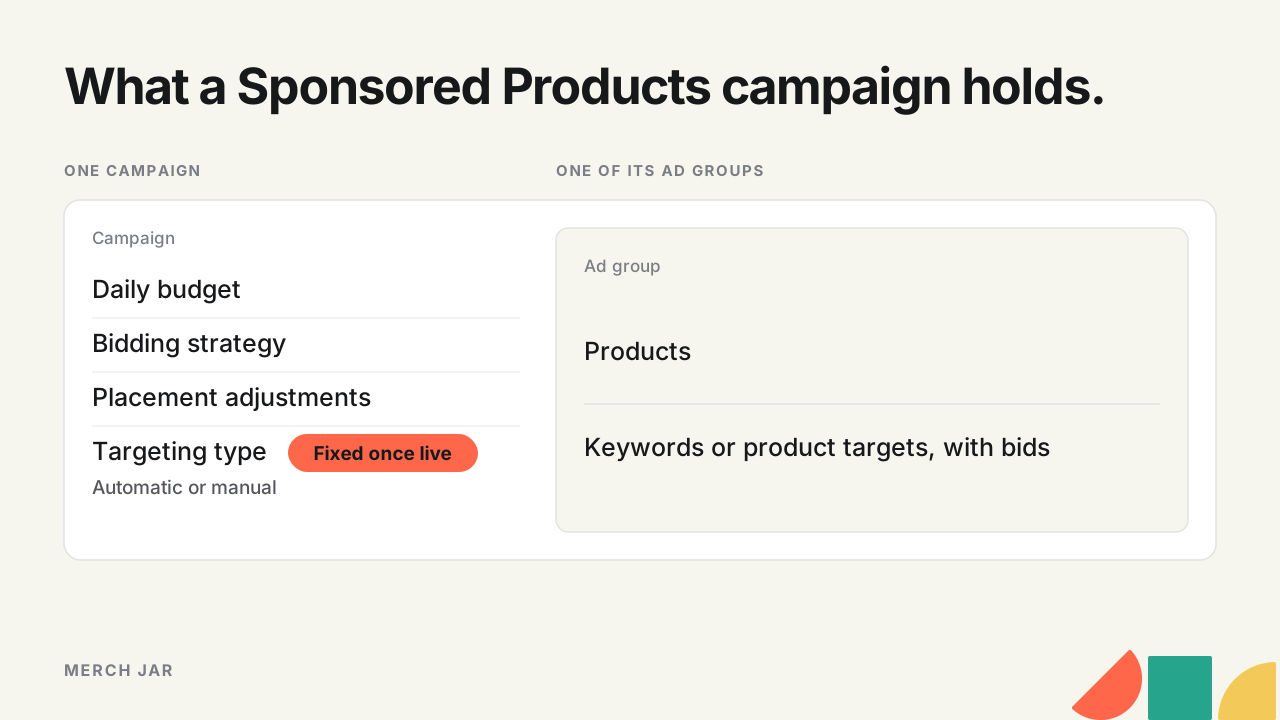
The campaign holds the daily budget, the bidding strategy, the placement adjustments and the targeting type, automatic or manual. Ad groups sit inside it. They hold the products you’re advertising and, in a manual campaign, the keywords or product targets with their bids. An ad group’s targeting and bids apply to every product in it.
The targeting type is fixed once the campaign goes live, so moving from automatic to manual means building a new campaign (Amazon’s targeting guide). And several products in one ad group share every bid and targeting choice, so none of them gets its own. Amazon’s advice, if you only have a few ASINs, is one ASIN per campaign with a budget you’re happy to spend on it.
Automatic and manual campaigns
In an automatic campaign, Amazon matches your ad to searches and products using your product information and past shopping queries. It does that through four targeting groups. Close match and loose match show your ad on searches closely or loosely related to your product. Substitutes shows it on detail pages of similar products, and complements on detail pages of products that go with yours. You can run one default bid across all four or bid on each group separately.
In a manual campaign, you choose every target, keywords or products, and set each bid yourself.
Amazon suggests a first-time advertiser start with an automatic campaign, let it run for about two weeks, then build manual campaigns from what its search term report shows. It also says advertisers often run both together, and that’s how we’d run them. The automatic campaign keeps finding new searches, and the ones that sell move into manual campaigns with their own bids. Our auto campaigns guide goes through the four groups and that loop in detail.
Keyword targeting and match types
Manual keywords come in three match types, from widest to narrowest.
- Broad match can serve a search with your keyword’s words in any order, plus plurals, variations, synonyms and related terms. The search doesn’t have to contain your keyword at all. Amazon’s example has “sneakers” matching “basketball shoes” and “trainers”.
- Phrase match needs the search to contain every word of your keyword in the same order, with other words allowed around it, and it includes the plural.
- Exact match needs the search to be your keyword word for word, in the same order, plus the plural.
Say your keyword is “garlic press”. On phrase match it can serve “stainless steel garlic press”. On exact it serves “garlic press” and “garlic presses”.
Amazon suggests testing a keyword in all three, with the highest bid on exact, a lower one on phrase and the lowest on broad, and says you won’t be bidding against yourself when the same keyword runs in different match types.
Product and category targeting
Product targeting is the other kind of manual targeting. You target individual products by ASIN or whole categories, and you can narrow a category by brand, price range, star rating and Prime shipping eligibility. A product target makes your ad eligible on that product’s detail page, and on search results where that product sits among the top results.
Good first targets come from your automatic campaign’s search term report, where the ASINs your ad showed against appear in the search term column. Amazon also suggests products and categories while you build the campaign.
Negative targeting
Negative targets keep your ads off searches and pages you don’t want, and they work in automatic and manual campaigns alike. Negative keywords come in phrase and exact. Negative phrase blocks searches that contain the phrase or a close variation, and negative exact is the narrower of the two. You can also exclude specific products and brands, which is how you stop an automatic campaign from showing on a detail page where it gets clicks and no orders. Negative keywords can sit on the whole campaign or on one ad group.
Amazon suggests waiting until a keyword has at least 20 clicks before you judge whether to negate it. A fixed click count ignores your conversion rate, though, so our negative keywords guide works the threshold out from that instead.
Bids, bidding strategies and placements
Your bid is the most you’re willing to pay for a click. Amazon’s best practices guide says the final cost per click is based on your adjusted bid plus other factors and never goes above it, which is why the CPC in your reports can sit below your bids. The highest bid doesn’t automatically win either, because Amazon also weighs how interested the shopper is likely to be in your offer (pricing transparency guide).
Each campaign runs one of three bidding strategies.
- Dynamic bids, down only. Amazon lowers your bid in real time when a click looks less likely to convert.
- Dynamic bids, up and down. Amazon also raises it for clicks that look more likely to convert, by up to 100% at the top of search and up to 50% on other placements (Amazon’s FBA advertising guide).
- Fixed bids. Amazon uses your bid exactly as you set it.
Placement adjustments sit on top. They raise your bid by a percentage, from 0% to 900%, when the ad is eligible for top of search, rest of search or product pages, and they only go up. Amazon applies the adjustment first and the strategy after, so in its own example a $1.00 bid with a 50% top of search adjustment bids $1.50 there, and up and down can take that to $3.00.
For a first campaign we’d use down only and leave every adjustment at 0% until there’s data to argue with. Our bidding guide goes through how the strategies and placements combine, and the keyword bidding guide works out the bid itself from your margin and conversion rate.
Budgets and how charges work
Sponsored Products campaigns have no monthly or upfront fees.
Amazon treats the daily budget as an average over the calendar month. Its own example is a $100 daily budget buying up to $3,100 of clicks in a 31-day month. On a busy day a campaign can spend more than its daily budget, out of what it didn’t spend on earlier days, by up to 25% or 100% depending on a setting in the console (Amazon’s announcement). Budgets aren’t paced through the day either, so a small one can be gone in minutes when a lot of shoppers are looking.
The minimum daily budget is $1.00, and Amazon suggests starting at $10 a day. You can raise or lower it any time after the ads go live.
Amazon either takes ad costs out of your seller or vendor account balance or charges a credit card. A card is charged when you reach your first $1.00 of clicks, then each time you reach your credit limit, which starts at $50 and steps up to $500 as payments go through, and on the third of each month for anything still owed from the month before.
Setting up your first campaigns
Amazon’s steps are short. Register for Amazon Ads, choose Create campaign and then Sponsored Products, add your products, choose targeting and a bidding strategy, then name the campaign, set its dates and daily budget, and launch. A clean setup comes from the choices inside those steps.
- Advertise products that can convert. The product has to be in stock and the Featured Offer, and the listing has to be worth landing on. Amazon’s own bar is five or more reviews at 3.5 stars or better, four or more images and at least three bullet points.
- Give each product its own campaign. With a handful of ASINs that’s Amazon’s recommendation too, and it keeps every product’s budget and numbers separate.
- Run an automatic campaign from day one, and add manual campaigns once you have keywords or products worth targeting.
- Name campaigns so you can filter them. Product first, then what the campaign is for, like “B0EXAMPLE1 - Garlic Press - Auto”. You’ll filter and bulk edit by that name for as long as the campaign runs.
- Leave the end date empty. Amazon recommends always-on campaigns with no end date.
- Set a budget you can leave alone for a few weeks.
Our campaign structure guide takes this further, with an automatic, a research and an exact campaign for each product and a rule for what moves between them.
What to watch in the first few weeks
Sales keep arriving in your reports after the click. For a seller, Amazon credits a Sponsored Products sale to the last ad click in the seven days before it, and that includes sales of your other products as well as the one advertised. Vendors and authors get 14 days. Conversions can take up to 12 hours to show, and a day’s figures stay incomplete until its window closes (Amazon’s attribution page). So the last few days of sales are still filling in, and a campaign judged on them can look worse than it is.
Amazon suggests checking at least twice a week in the first week, and giving a first campaign two to three weeks before deciding what works. In that time, look at these in roughly this order.
- Impressions. If there are none after a few days, check the product is still the Featured Offer, then check your bid against Amazon’s suggested bid.
- Budget. A campaign that runs out most days goes dark for the rest of each day. Amazon’s advice is to raise the budget when that happens often.
- The search term report. It lists the searches and ASINs that got at least one click. Searches that convert in the automatic campaign graduate to exact match. The ones that keep spending without an order become negatives once they’ve had a fair number of clicks. Our search term report guide covers reading it before you change anything.
- ACoS against your breakeven. ACoS is ad spend divided by ad sales. Whether yours is good depends on your margin, which our guide to a good ACoS works through.
Small budgets stretch the wait. Take a constructed example. A $1.20 keyword bid on down only, with no placement adjustments, never pays more than $1.20 a click, so a $10 daily budget covers at least eight clicks a day. Spread evenly across ten keywords, that’s 0.8 clicks each, and a keyword needs 25 days to reach the 20 clicks Amazon suggests before you decide whether to negate it. Fewer keywords per campaign, or more budget, gets you there sooner.
Quick answers
How much do Sponsored Products cost?
There’s no upfront or monthly fee. You pay only for clicks, never more than your adjusted bid per click, and the daily budget caps each campaign’s spend, averaged over the month. What a click actually costs comes out of the auction, so it changes from one search to the next.
Can I run Sponsored Products on an individual seller account?
No. Amazon requires an active professional seller account, along with the shipping, category and Featured Offer conditions above.
Can I change a campaign from automatic to manual?
No. Targeting is fixed once the campaign is live. Build a manual campaign and run it next to the automatic one.
Why isn't my Sponsored Products ad showing?
Start with the product. It has to be in stock and the Featured Offer, and Amazon flags ads that aren’t eligible in the campaign manager. Then look at the bid against the suggested bid, and at whether the campaign ran out of budget earlier in the day.
Plan your first campaigns
The free campaign structure planner needs no sign-up. Paste your ASINs, pick the campaigns each product gets, and it gives you a plan with campaign names and daily budgets to review and download. You can build that by hand in the console, or paste it into your own AI with the Campaign creation skill from our Library, which builds it through the Merch Jar API once you’ve approved the plan.