
How to Structure Amazon PPC Campaigns, One Product at a Time
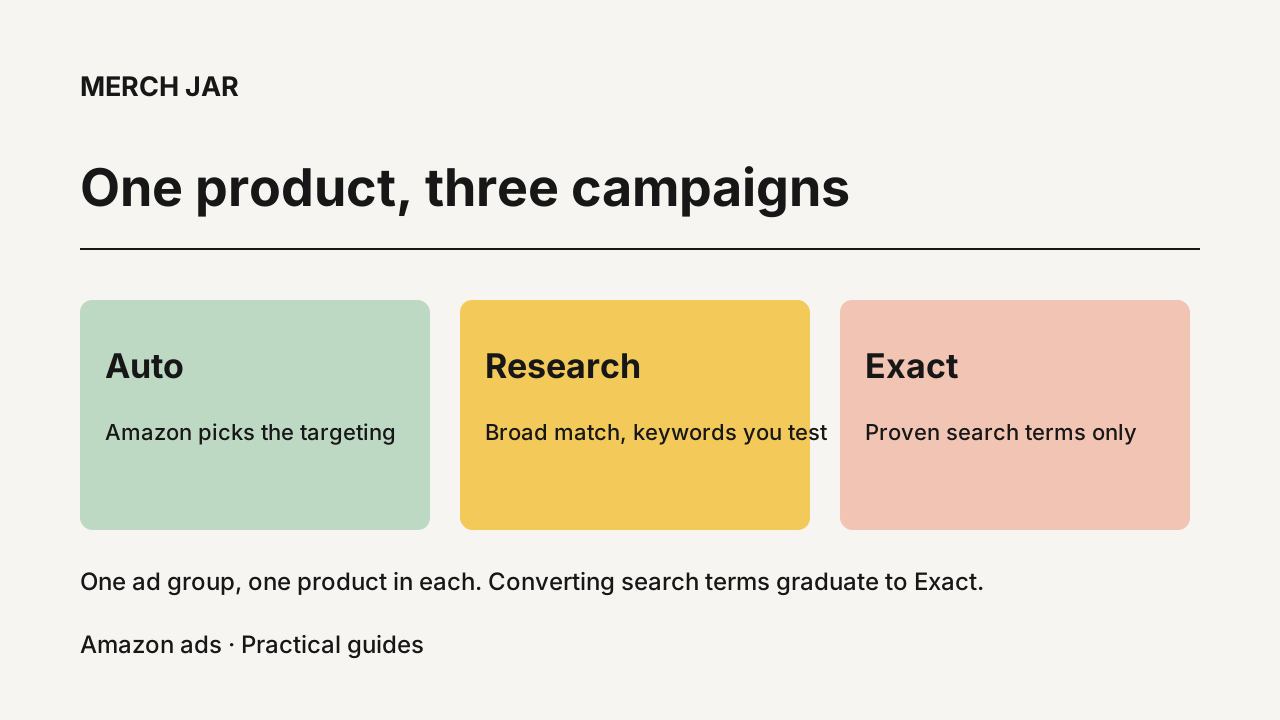
Give every product three campaigns. An auto campaign where Amazon picks the targeting, a research campaign running broad match on a small set of keywords you want to test, and an exact campaign that holds only search terms that have already converted. One ad group and one product in each. Name them so the product comes first and the job comes second, give each one a small fixed daily budget, and set one rule for what graduates out of the first two into the third. That’s the structure. Everything below is Sponsored Products.
Why one product per campaign
Amazon sets targeting, daily budget and bidding strategy at the campaign level, and your keyword or product targeting and bids apply to every product inside an ad group (Amazon’s Sponsored Products best practices). So the moment you put three products in one campaign, they share a budget, a bid and a targeting decision, and none of them can be managed on their own merits.
The attribution problem is the one that bites hardest. When a search term shows up in your report with four orders on it, you want to know which product earned them, without guessing. That’s only clean if the ad group held one product. The search term report guide goes further into reading those rows.
And products want different money. A launch with no reviews can justify running at or above breakeven while it buys velocity. A mature product with steady organic sales should be sitting well under it. Those are different ACoS targets, which means different bids, which means different campaigns.
The three campaigns and what each one is for
| Campaign | Targeting | What goes in | What leaves | How you judge it |
|---|---|---|---|---|
| Auto | Automatic, all four targeting groups | One product, one default bid, no keywords | Converting search terms graduate to exact, non-converters become negatives | The search terms it produces, more than its own ACoS |
| Research | Manual, broad match | 10 to 20 keywords you chose deliberately | Same graduation, same negation | Whether it surfaces terms the auto isn’t finding |
| Exact | Manual, exact match | Only search terms that already produced orders | Very little, this is where terms settle | ACoS against your target, keyword by keyword |
The auto campaign is Amazon matching your ad to shopping queries and product pages from your listing, across four targeting groups: close match, loose match, substitutes and complements (Amazon’s targeting guide). Start with all four running together and one bid. You can split them into separate campaigns later if you want to bid on each group differently, and the auto campaign guide covers how the groups behave once data arrives. Its output is a list of search terms you did not write.
The research campaign is the opposite input. Broad match, so a shopping query can contain your keyword terms in any order and can include synonyms, and a short list of keywords you picked on purpose. Ten to twenty is plenty. This campaign exists to test your own ideas cheaply and to produce search terms, so judge it on what it turns up rather than on its own ACoS. The math for setting those opening bids from your margin is in the keyword bidding guide.
The exact campaign is where proven terms live. Exact match means the shopping query matches word for word, same words in the same order, so each keyword gets its own bid and its own read. Nothing goes in here on a hunch. A term arrives because it already spent your money and came back with orders.
One more thing about the auto campaign, because the internet is still wrong about it. You can add negative keywords to an automatic campaign. Amazon’s targeting guide says negative targeting “can be used in both automatic and manual campaigns,” at either the campaign or the ad group level. An older version of this article said otherwise, which was true years ago and isn’t now.
Name the campaign so you can filter on it later
Product identifier first, then what the campaign is doing.
B07NFS451V - Dog Mom Shirt - Auto
B07NFS451V - Dog Mom Shirt - Research - Broad
B07NFS451V - Dog Mom Shirt - Exact
The ASIN identifies the exact product. The short product name makes the list readable when you’re scanning fifty rows. Purpose and targeting stay separate fields because they answer different questions, and “exact match” tells you how you’re targeting without telling you whether you’re testing that keyword or putting real spend behind one that already works.
You’ll lean on this more than you expect. Every filter, every bulk edit, every report you sort by campaign name depends on the name carrying the product and the job. Changing the convention once a hundred campaigns exist means renaming all of them.
Settings at launch
One ad group per campaign. One product in it. Both manual campaigns start with your keywords and your match type, nothing else.
Set a small fixed daily budget you can afford to run for two to four weeks without flinching, because that’s how long it takes before the numbers mean anything. Amazon suggests a minimum of $10 per campaign as a floor, and $10 to $20 a day is a reasonable starting range for a discovery auto in the US. Note that Amazon averages the daily budget across a calendar month and can spend over it on a given day, up to the setting you choose (daily budgeting policy). There’s no universal right number. Pick one that lets the campaign gather data and lets you sleep.
Opening bids come from what you already pay in the account for similar products, or from Amazon’s suggested bid if the account is new. Pick one bidding strategy, leave placement adjustments at zero, and don’t touch either until you have data to argue with. Placement adjustments go up to 900% and dynamic bidding can move your bid by up to 100%, so turning both on before you know anything just amplifies a bid you haven’t validated yet.
Targeting is the one setting you can’t undo. Amazon’s guide is blunt about it. Once the campaign is live you can’t change the campaign targeting, and changing your mind later means building a new campaign instead.
What moves where
Read the search term report weekly or every two weeks, with the product and campaign still attached to every row.
A search term with two or more orders at an ACoS you’d accept graduates to the exact campaign with its own bid. One order is a maybe, so leave it running and look again next week. That threshold is a working rule, not an Amazon rule, and you should move it to fit your conversion rate.
When a term graduates, add it as a negative exact in the campaign it came from. Otherwise your auto and your exact bid against each other for the same search and neither report reads clean.
Terms that click and never convert get negated in place. The negative keyword guide has the actual math for when a term has had a fair chance, which depends on your conversion rate rather than on a round number someone posted in a forum.
Doing this for ten products at once
Three campaigns per product is fine for one product. For ten it’s 30 campaigns, 30 ad groups, 30 product ads and a keyword list for each manual campaign, all with the same settings typed again with one field changed. You have three ways through it. Build them by hand in the console. Fill out a bulk operations file and upload it, which is faster and far less forgiving about a mistyped column. Or drive the creation through an API.
I recorded the third one. I gave the Merch Jar Copilot a spreadsheet of ten ASINs for my German marketplace and described the structure I wanted, an auto, a broad research campaign and an exact campaign for each, with placeholder keywords rather than invented keyword research. It read the account, picked up the bidding levels and naming conventions already in use, and came back with a full plan for 30 campaigns, 30 ad groups and 30 product ads, the bids it proposed, and a warning that some of those ASINs already appeared elsewhere in the account. I changed the budget to 5 euros per campaign, told it to go ahead anyway on the overlapping ASINs, and approved. It created the campaigns with the autos enabled and the 20 manual campaigns paused, since the keywords in them were placeholders. Nothing was created before I said yes. The full walkthrough is on YouTube, and the help doc covers the same job in writing.
The graduation loop can run the same way. Smart Campaigns checks search term performance daily, creates keywords or product targets from converting terms and negative keywords from non-converters, with a dry run so you can see exactly which terms would move before anything does. It runs when you turn it on.
Questions that come up
Can I use one campaign with several ad groups instead? You can, and plenty of accounts do. What you give up is per-product budget control, since the budget sits on the campaign, and clean attribution, since bids and targeting apply across everything in an ad group. The multi-ad-group version makes more sense once an account is large enough that campaign count is itself a management problem. Starting out, the extra campaigns cost you nothing and buy you separable numbers.
Do I need the research campaign if I already have an auto? Not on day one. If you have no keyword research done, the auto alone is a reasonable start and the research campaign can wait until you have terms worth testing variations of. The reason to run both is that they find different things. The auto finds phrasing you’d never have written. The research campaign tests the phrasing you already believe in, on your schedule, instead of waiting for Amazon to get around to trying it.
Where do product targets (ASIN targeting) go? Their own campaign, named the same way. Your auto campaign’s substitutes and complements groups are already placing you on product pages, and the ASINs that turn up in your search term report are your candidate list. Promote the ones that convert into a product-targeting campaign where each ASIN carries its own bid, and negate them in the auto the same way you would a keyword.
Where to start
Pick one product, build its three campaigns, and run them for a month before you judge anything. Then do the second product and see whether the naming convention you chose still makes sense at scale, because that’s the part that’s hard to change later.
The video walks through the ten-product version end to end if you’d rather watch it happen. The Copilot is included with every Merch Jar subscription and works through your own AI client, and there’s a 14-day free trial, no credit card.