
How to Separate Branded and Non-Branded Amazon Ads
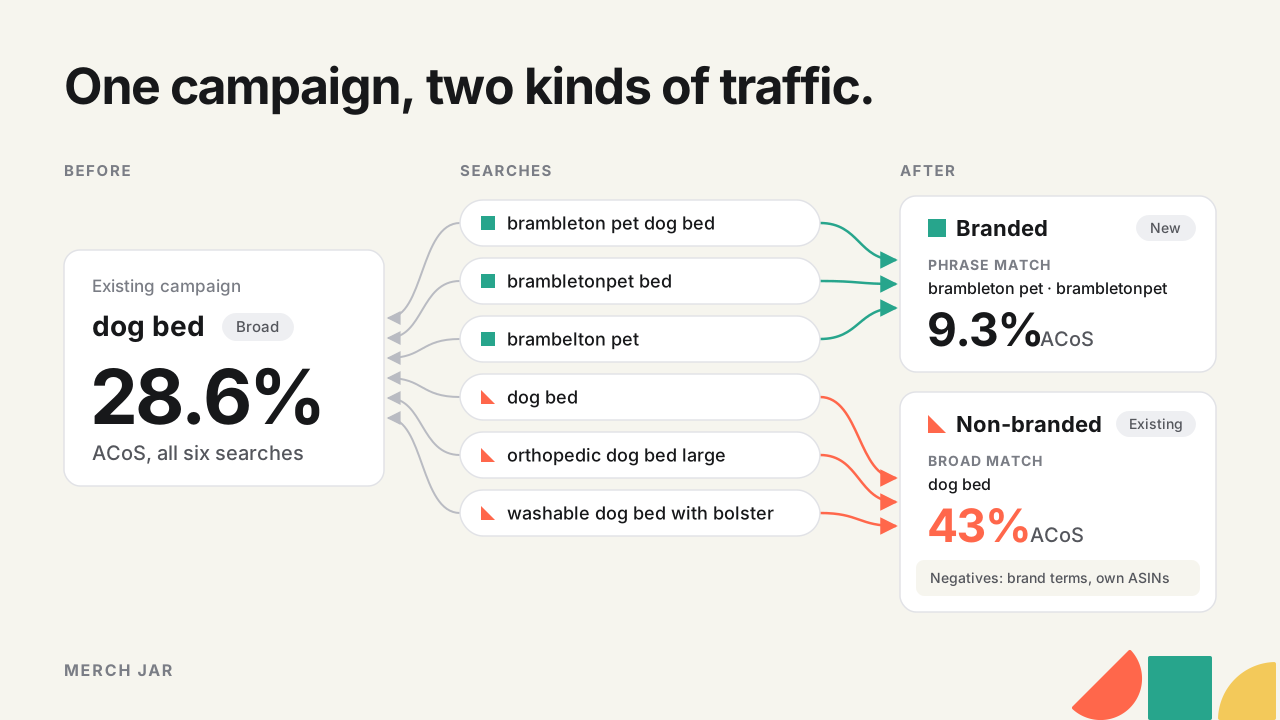
Searches that include your brand name usually come in at a much lower ACoS than the rest of your Amazon ads, because the shopper has already picked you. Mixed in with everything else, those sales make the whole account look healthier than the traffic you’re trying to grow. So split your search term report into branded and non-branded searches and compare the two. Then give each kind of traffic its own campaigns with their own goal and budget, adding new branded campaigns before you exclude your brand from the existing ones.
I walk through the same process on a real account in the video version.
Get the split from your search term report
This is one of the first things I check when I look at an account, so we built a free AI skill that does it. The Branded vs. non-branded report is in the Merch Jar Library, and you don’t need a Merch Jar subscription to use it.
Copy the setup request from the Library page and paste it into an AI that can read files and run code, like Claude or Codex, and it handles the install. Or download the skill folder and point your AI at that folder.
Then pull your data from reporting in the Amazon Ads console. Choose Use template for the Search term report, set the account and date range, and download it once it’s ready. The Advertised product report is optional and adds your ASIN traffic (more on that below). If you already use the Merch Jar Copilot, you can skip the export and let it get the same data from Merch Jar.
Drop the reports into your AI and ask for the report.
Help me generate a brand report.
What the split shows
Take Brambleton Pet, the made-up brand from the video, with one campaign bidding on “dog bed” in broad match. Here are six searches from a month of its search term report, with numbers invented for the example.
| Search term | Traffic | Spend | Sales | ACoS |
|---|---|---|---|---|
| dog bed | Non-branded | $900 | $2,000 | 45.0% |
| orthopedic dog bed large | Non-branded | $520 | $1,300 | 40.0% |
| washable dog bed with bolster | Non-branded | $300 | $700 | 42.9% |
| brambleton pet dog bed | Branded | $180 | $2,000 | 9.0% |
| brambletonpet bed | Branded | $60 | $700 | 8.6% |
| brambelton pet | Branded | $40 | $300 | 13.3% |
The campaign as a whole runs at 28.6% ACoS ($2,000 of spend on $7,000 of sales). If your target is around 35%, that looks fine, and you might even think about giving it more budget. Split it, and the branded searches run at 9.3% while the non-branded searches run at 43%.
Spend and sales share tell the same story. Branded searches are 14% of the spend here and 43% of the sales. So that 28.6% is really two kinds of shoppers averaged together, people who already know the brand and are looking for it, and people shopping for a dog bed who haven’t picked a brand yet. If you’re trying to grow, it’s mostly that second group you’re trying to reach, and in this example they cost 43%.
To see the full report on a real account, anonymized under the Brambleton Pet name, open the example report.
Why your campaign list doesn't show it
The keyword you bid on isn’t always what the shopper typed. Bidding on “dog bed” in broad match, the ad can show for “dog bed” and for “brambleton pet dog bed” alike, and auto campaigns pick up brand searches too. So most campaigns end up with both kinds of traffic mixed together, and a bid on that one keyword applies to both. That’s why the split starts from the search term report instead of your campaign names. If you haven’t spent much time in that report, our guide to reading an Amazon search term report covers what each row means.
Your products versus other products
Some rows in the report aren’t searches at all. They’re ASINs, the product pages your ads appeared on, and they sit outside the branded and non-branded split. Give your AI the Advertised product report and the skill breaks that traffic down into your own ASINs, where your ads show on your own products, and every other ASIN. In the account from the video, ads on its own product pages ran at a much lower ACoS than ads on other products, the same kind of gap as the brand searches.
Check the brand list it used
The split is only as good as the list of what counts as your brand. If you don’t give the skill one, it makes its best guess from your search terms and the products in your reports. That covers your brand name and the ways shoppers actually type it, joined up or misspelled. It’s also where product line names go, or series names if you’re an author, any phrase that tells you a shopper is already looking for you. Generic words don’t get counted as branded just because they show up in your search terms or product names.
You can edit the brand list and the ASIN list right in the report, then copy the changes and paste them into your AI so they’re saved for your next report.
Give each kind of traffic its own campaigns
With a gap like that, the two kinds of traffic need different goals, and separate campaigns give each one its own goal and budget. The report’s second tab is a plan to get there without starting your campaign structure over.
Build the new campaigns first, one for your branded searches and one for your own products (product defense), and leave the existing campaigns running untouched. Once the new campaigns are getting impressions and clicks, add negative keywords for your brand names and negative product targets for your own ASINs to the existing campaigns. That turns them into your non-branded campaigns, and they keep all their history.
Branded searches
The default suggestion is one new campaign for all your branded searches with a shared budget, and an ad group for each product category. The skill builds the categories from your product names. The keywords are your brand terms in phrase match, so for Brambleton Pet that’s “brambleton pet” and “brambletonpet”. If you’d rather give each category its own budget, split it into one campaign per category instead.
Product defense
Defense ads show your products on your own product pages. The default is again one campaign, with related products in the same ad group, so a shopper on one of your dog beds sees your other dog bed ads. You can also set up cross-sell groups, like cat trees on your dog bed pages, which takes a bit more work. Or put the whole catalog in one ad group.
For most sellers I’d leave the defaults, one campaign each with several ad groups. It works and it’s easy to manage. The primary goal is getting branded traffic out of your non-branded numbers.
Setting it up with Merch Jar connected
Everything up to here is free, and you can run it again whenever you pull a new report.
Connecting Merch Jar is for the account work, and it needs an active Merch Jar account. The Copilot reads your current campaigns, targets and negatives so the plan fits what’s actually running, then creates the campaigns you’ve reviewed as paused. When you ask, it checks how the new campaigns are doing, and once there’s enough data it proposes the negatives for your existing campaigns. Nothing goes live until you approve it, and you enable the campaigns yourself. The report’s Setup & progress tab lists each step with the request to copy into your AI.
Set a goal for each side
Once the traffic is separated, each side gets a goal of its own. In the Brambleton Pet example, the non-branded searches were running at 43% inside a campaign that looked fine at 28.6%. In their own campaigns, you can see that number and bid toward the goal you actually want for it.
You can ask your AI to write the bidding automation around both goals, and Merch Jar runs it. In the bidding example from the video, branded keywords get a 10% ACoS goal and non-branded keywords get 30%, and the logic calculates the bid for each keyword from its goal. The automation starts disabled and only runs once you turn it on. Those are that example’s numbers, so set yours from your own margin, which our guide to a good ACoS on Amazon walks through.
Quick answers
What counts as a branded search on Amazon?
Any search that includes your brand name, including joined-up and misspelled versions, plus product line or series names shoppers use to find you specifically. Your brand name plus a product, like “brambleton pet dog bed”, is still branded. A generic word doesn’t become branded because it’s in your product titles.
Should I turn off my branded ads?
Not on the strength of this report. It shows what branded traffic costs and returns, not whether those sales would have happened without the ad. Separating it gives brand searches their own budget and goal, so how much you spend on them becomes a deliberate choice.
Why not add brand negatives to my existing campaigns right away?
Because until the new campaigns are serving, the brand traffic would have nowhere else in your ads to go. Build the branded and defense campaigns first and wait until they’re getting impressions and clicks, then add the negatives. The existing campaigns keep their history.
Do I need Merch Jar to use the report?
No. The report and its campaign suggestions work from your downloaded Amazon reports without a subscription. Checking the plan against your current campaigns and creating them needs Merch Jar connected.
Run it on your own account
Get the Branded vs. non-branded report and run it on your own search term report to see what your brand searches are doing to your numbers. You might decide some of that spend earns its place, or you might find budget you can put toward shoppers who haven’t picked a brand yet.
If you want to build the campaigns and run the bidding on both goals in Merch Jar, it’s a 14-day free trial, no credit card.